
Configuration
Under Konfiguration (Configuration) you decide how the app works for your operators: what they may do with a pallet, which order data they can add, how long they may be inactive and which logo is shown.
Before you start
- You are signed in as TenantAdmin. Open Konfiguration on the start page.
- You are online. The settings cannot be changed without a connection.
How it works
- Trackbay (Superadmin) makes functions available to your company. You can choose among them, but never switch on something that is not available. A function that is not available is not shown on the page.
- Changes reach the operators at their next sign-in. Sessions that are already running do not change straight away.
- Existing data stays when you switch something off. It is only hidden, and shows again if you switch the function back on.
- What you change is written to the activity log, with you as the actor.
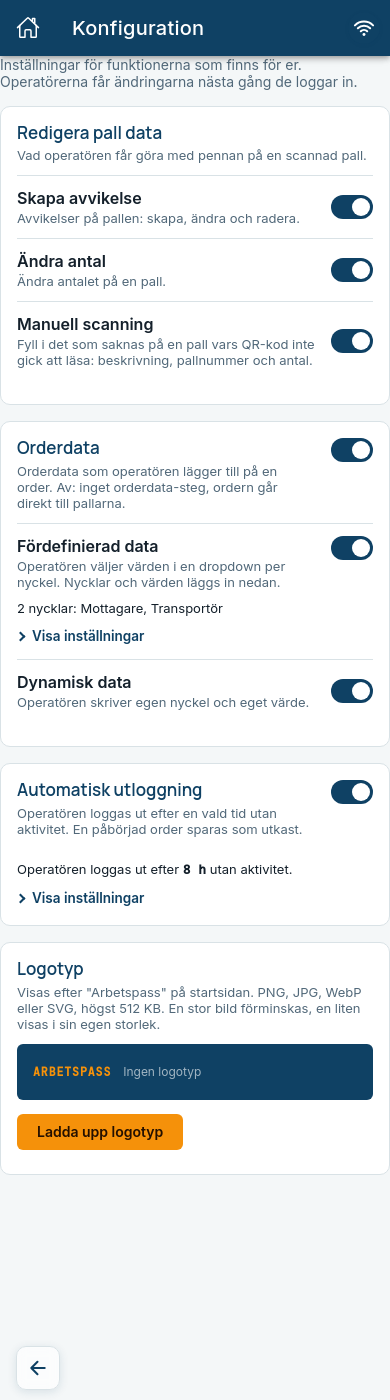
Redigera pall data (Edit pallet data)
Controls what an operator may do with the pencil on a scanned pallet. Each switch is a function of its own:
| Switch | What the operator can do |
|---|---|
| Skapa avvikelse (Create deviation) | Create, change and delete deviations on the pallet, see Deviations. |
| Ändra antal (Change quantity) | Change the quantity on a pallet. |
| Manuell scanning (Manual scanning) | Fill in what is missing on a pallet whose QR code could not be read: description, pallet number and quantity. |
At least one choice must be on. The last switch cannot be switched off. If you want the pencil gone entirely, Trackbay has to switch the function off.
Orderdata (Order data)
The switch at the top of the section turns the whole order data step on or off.
- Off: the operator sees no order data step, and a new order goes straight to the pallets.
- On: the operator can add order data according to the two switches below, see Order data. At least one of them must be on.
Fördefinierad data (Predefined data)
The operator picks values from a list per key. You enter the keys and values yourself:
- Tap Visa inställningar (Show settings) under Fördefinierad data.
- Add a key, for example
Mottagare(Receiver): type in the Ny nyckel (New key) field and tap Lägg till nyckel (Add key). - Add values under the key, for example
Kund A(Customer A): type in Nytt värde (New value) and tap Lägg till värde (Add value). Remove a value with ×. - Byt namn (Rename) and Ta bort nyckel (Remove key) are at each key.
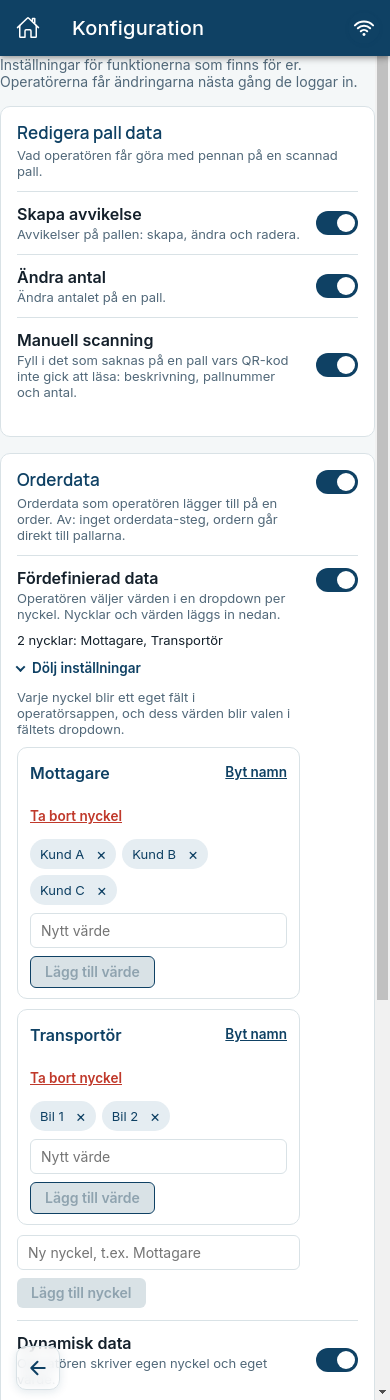
Expected: Each key becomes a field of its own in the operator app, and its values become the choices in the list. A key without values is not shown to the operator until it has at least one. If there are no keys at all, the operator sees no predefined fields.
Receiver controls the delivery list
Operators cannot put orders with different Mottagare on the same delivery list, see Deliveries. Choose the receivers with care.
Dynamisk data (Dynamic data)
The operator types a key and a value of their own. Suits cases where the details vary too much for a fixed list.
Automatisk utloggning (Automatic sign-out)
Switches on or off that operators are signed out after a period without activity. An order in progress is saved as a draft. Thirty seconds before it is time, a countdown is shown where the operator can choose Fortsätt arbeta (Keep working), see Signing in and out.
- Tap Visa inställningar under Automatisk utloggning.
- Choose the time with the wheels for hours (tim) and minutes (min). The time can be from 1 minute up to 8 hours.
- Tap Spara (Save) (the button shows the chosen time, for example Spara 8 h).
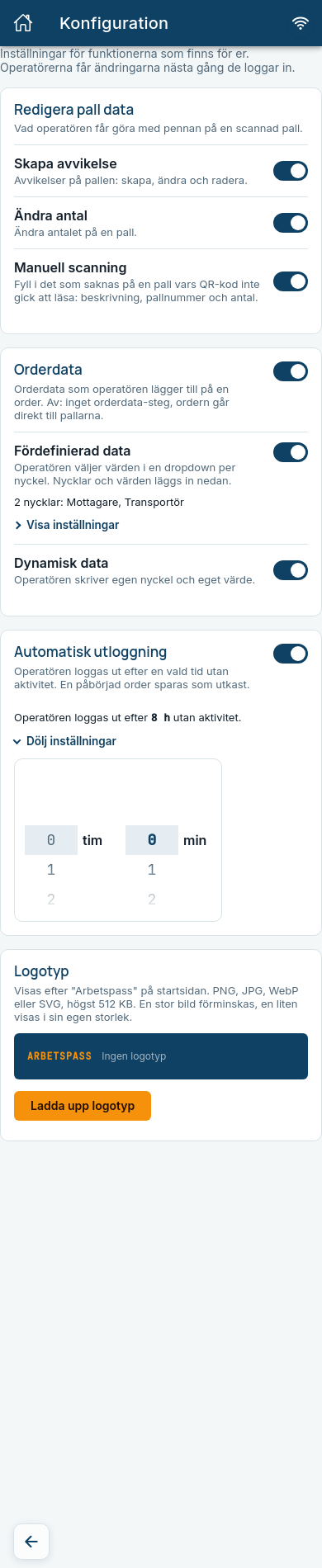
Expected: The line above shows the saved time: "Operatören loggas ut efter 8 h utan aktivitet." (The operator is signed out after 8 h of inactivity.) Operators get the change at their next sign-in.
Logo
Shown after Arbetspass on the start page. Tap Ladda upp logotyp (Upload logo), or Byt logotyp (Change logo), and choose an image.
- The image must be PNG, JPG, WebP or SVG and at most 512 KB.
- A large image is scaled down, a small one is shown at its own size.
- Tap Ta bort (Remove) to remove the logo.
What changes for the operators
| You change | The operator notices |
|---|---|
| Switch off Skapa avvikelse | The Skapa manuell avvikelse button is missing in the pallet dialog. |
| Switch off Ändra antal | The quantity on a pallet cannot be changed. |
| Switch off Manuell scanning | Komplettera is missing, so a pallet without a QR code cannot be filled in. |
| Switch off Orderdata | The Order data step disappears and the order goes straight to the pallets. |
| Add a value under a key | The value is a choice in the list at the next sign-in. |
| Switch on Automatisk utloggning | The operator is signed out after the chosen time, with a warning 30 seconds before. |
| Upload a logo | The logo is shown after Arbetspass on the start page. |
Common errors
| Message | What to do |
|---|---|
| Kunde inte hämta inställningarna. Kontrollera anslutningen och försök igen. (Could not fetch the settings.) | Check that you are online and try again. |
| Kunde inte ändra "…". Kontrollera anslutningen och försök igen. (Could not change "…".) | The change was not saved. Try again. |
| Minst ett val måste vara på. (At least one choice must be on.) | Switch on another choice before you switch this one off. |
| Det finns redan en nyckel med det namnet. (A key with that name already exists.) | Choose another name. |
| Nyckeln får inte vara tom, och nyckel eller värde är för långt. (The key must not be empty, and the key or value is too long.) | Write a shorter name or value. |
| Välj minst 1 minut. (Choose at least 1 minute.) | The time for automatic sign-out must be at least 1 minute. |
| Bilden måste vara PNG, JPG, WebP eller SVG och högst 512 KB. (The image must be PNG, JPG, WebP or SVG and at most 512 KB.) | Choose another image. |