
Offline and sync
Trackbay works in warehouses and in the field where the network comes and goes. You can register pallets without a connection. The changes are saved on the device and sent automatically when the connection is back.
How to tell whether you are online
The icon at the top right of every view shows the connection: Ansluten (Connected) or Offline – ingen anslutning till servern (Offline – no connection to the server). The Ej synkat (Not synced) card on the start page counts the changes that are waiting.
What you can do offline
| Function | Offline |
|---|---|
| See orders that have already been fetched to the device | Yes |
| Create an order | Yes. The order exists only on the device until it has synced. |
| Register pallets on an order | Yes |
| Save a draft | No, needs a connection |
| Print pallet labels and the delivery list | No, needs a connection |
| Approve a delivery list | No, needs a connection |
Changing the quantity on a pallet and manual deviations are also put in the queue while you are offline, but they can fail if the order has changed on the server in the meantime (see below).
Example: register a pallet without a network
- Open the order and tap Registrera pallar (Register pallets).
- Lose the connection (airplane mode, or walk out of coverage).
- Scan the pallet as usual.
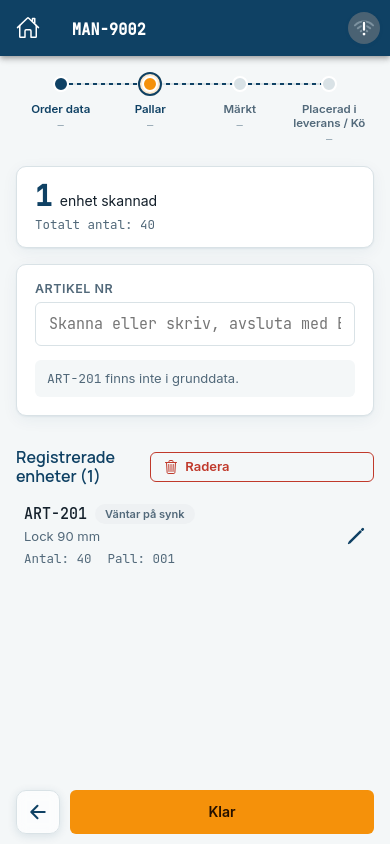
Expected: The pallet shows in the list straight away, marked Väntar på synk (Waiting to sync). The pencil is missing, and the pallet cannot be opened until it has synced.
- Get the connection back.
Expected: Within a few seconds Väntar på synk disappears by itself, the pencil returns and Ej synkat on the start page becomes empty.
Do not reload the page
Do not reload the page in the browser while you are offline. The pallets stay on the device, but the page cannot be fetched without a network. Use the app's own buttons.
Base data
After you sign in, the app fetches your company's base data (articles and their attributes) to the device. It is used when you scan, even without a network. When the base data has been fetched, and when it changes, a small orange ! is shown at the left edge. Tap it to see what happened, and OK to close it and make it go away.
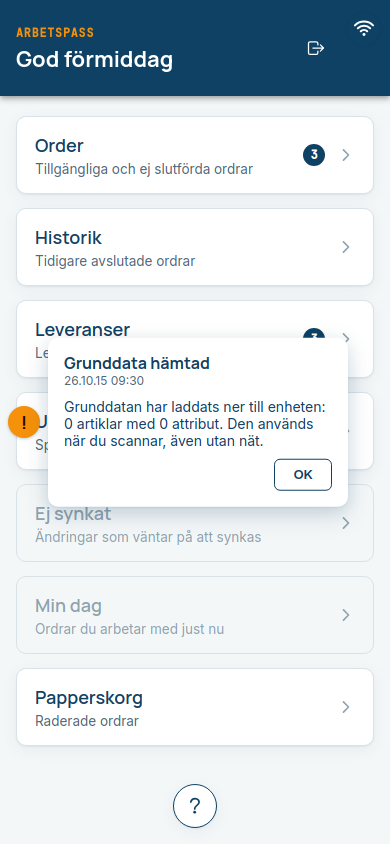
You do not need to do anything. The new base data is used straight away, and you do not need to sign out. The numbers in the notice depend on your company's data.
Following the queue
Tap Ej synkat on the start page to see what is waiting, when it was last synced and whether anything did not go through. Tap Synka nu (Sync now) to try straight away. Read more under Drafts and sync queue.
If two people change the same thing
The rules are simple, and you should know them:
- Changes are sent in the order you made them. The latest change wins.
- If the order has changed on the server so that your change can no longer be made, for example because a colleague has already completed it, your change is not accepted. It is shown under Kunde inte synkas (Could not be synced) with the reason, and Trackbay does not try to send it again or merge the changes.
- You then decide yourself whether the change should be redone, and remove the entry with Ta bort (Remove).
Signing out with unsynced changes
If you sign out with changes waiting, they stay on the device and are synced by whoever signs in next to the same company. Make sure the sync has finished before you hand the device to someone else. Other companies' data is never mixed on the same device.