
Scanning and building pallets
Here you register the pallets that belong to an order, finish picking and print the pallet labels. When the labels are printed, the delivery is created.
Before you start
- The order exists, see Orders.
- The pallet label has a QR code. You can scan it with a scanner that types the code into the field, or paste or type it by hand.
What the QR code contains
The label's QR code is a short text string with four parts: A article number, B quantity on the pallet, C pallet number and D description. Example: {"A":"ART-101","B":"150","C":"001","D":"Plastlock 100 mm"}.
Register pallets
Open the order and tap Registrera pallar (Register pallets).
Scan the label, or type in the Artikel Nr (Article no.) field and finish with Enter.
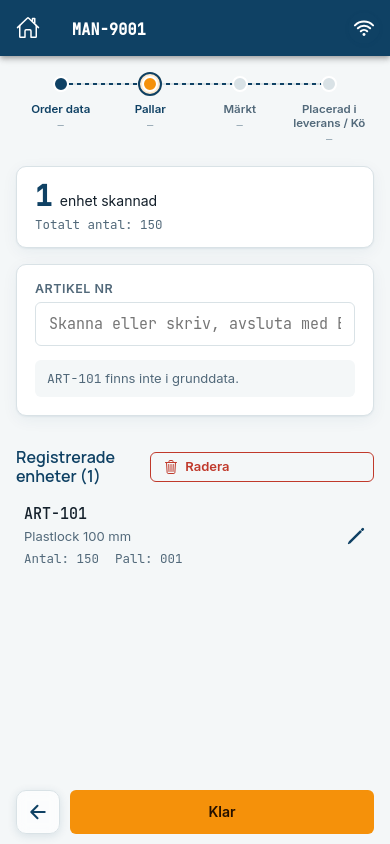
Repeat for each pallet. The counter at the top shows how many units are scanned and the total quantity. Under Registrerade enheter (Registered units) you see article, description, quantity and pallet number.
Expected: Each scan becomes a row, and the field is emptied so you can scan the next one. The trace line moves on to Pallar.
Change a pallet
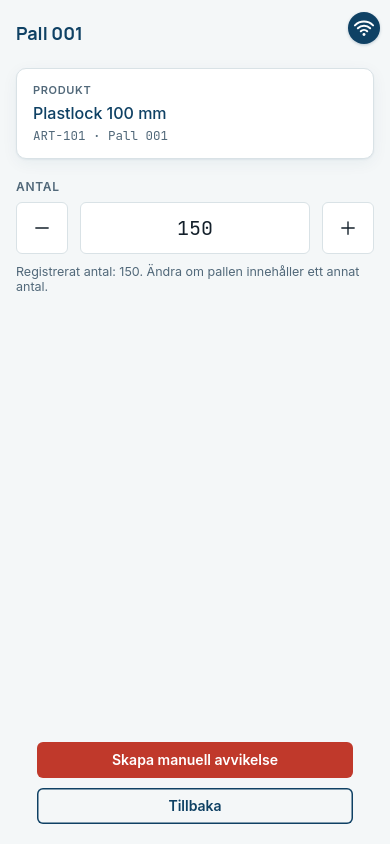
Tap the pencil on a pallet. Here you can change Antal (Quantity) with − and + or by typing a value, and add a manual deviation with Skapa manuell avvikelse (Create manual deviation) (see Deviations). Tap Tillbaka (Back) when you are done. If you have changed something, the button is called Uppdatera (Update).
Functions that can be switched off
The pencil, changing the quantity, manual deviations and Manuell scanning (Manual scanning, completing a pallet that was typed in without a label) are functions your company can have switched off. They are then missing in the app.
Remove pallets
Tap Radera (Delete) above the list, mark the pallets to remove and tap Radera valda enheter (Delete selected units).
Finish picking
Tap Klar (Done). The page Plockning klar (Picking done) shows the number of pallets and the total quantity of articles, and explains what happens next: the delivery is created, sent to Cloudlabel and the labels are generated.
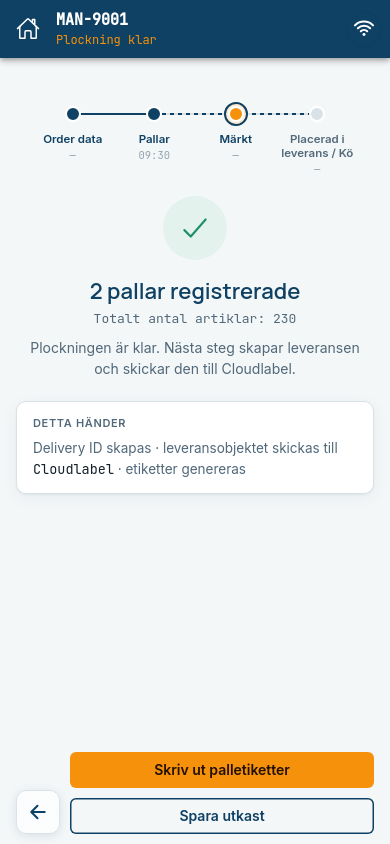
You have three choices:
- Skriv ut palletiketter (Print pallet labels) (orange): goes on to printing.
- Spara utkast (Save draft): saves the order under Utkast so you can continue later, see Drafts and sync queue.
- Tillbaka (the arrow): back to the pallets.
Print pallet labels
Tap Skriv ut palletiketter. The delivery is created and sent to Cloudlabel. The Leverans (Delivery) card shows the delivery's id, the order, the number of units and the number of printed labels. The Cloudlabel card shows the print status: I print-kö (In print queue), then Märkning klar (Labelling done) with the text "Cloudlabel har bekräftat utskriften." (Cloudlabel has confirmed the print job.)
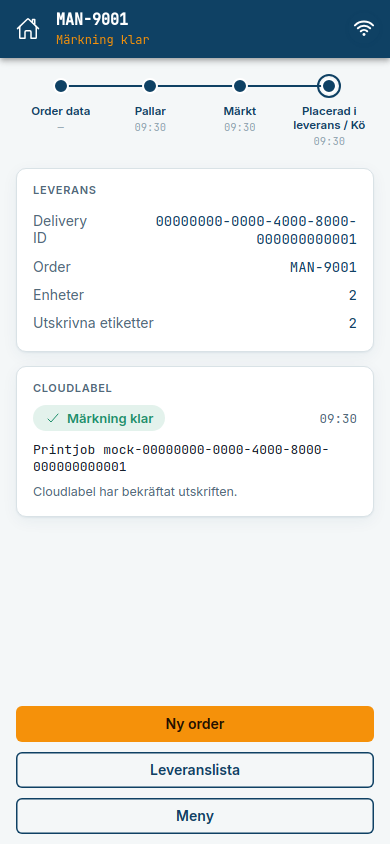
The buttons Ny order (New order), Leveranslista (Delivery list) and Meny (Menu) are grey until printing is done. Expected: The order now has status Väntar på leverans and is under Leveranser, see Deliveries and delivery lists.
Leaving the page before the labels are printed
If you leave the picking page with pallets that are not printed, the app asks Spara i utkast? (Save as draft?). Choose Spara i utkast och lämna (Save as draft and leave) to keep the order under Utkast, or Stanna kvar (Stay). Saving a draft needs a connection.
Common errors
| Message | What it means | What to do |
|---|---|---|
| Kunde inte läsa QR-koden – skanna igen. Läst: … (Could not read the QR code – scan again.) | The scanner dropped characters. | Scan the label again. Nothing was registered. |
| QR-koden saknar artikelnummer (A). (The QR code has no article number.) | The code has no article number. | Check the label, or type the article number by hand. |
| Pall … med artikel … är redan registrerad på ordern. (Pallet … with article … is already registered on the order.) | The same pallet is already scanned. | Scan the next pallet. Duplicates are not registered. |
| 1 pall saknar data. Komplettera den eller spara ordern som utkast. (1 pallet is missing data.) | A pallet entered without a label is missing a description or pallet number. | Tap Komplettera on the pallet, or Spara utkast. |
| Kunde inte skicka utskriften (Could not send the print job) | Cloudlabel did not receive the print job. | Tap Testa igen (Try again). |
If the printing does not come out after several attempts, see Troubleshooting.